Vertically Center Content in Twitter Bootstrap
thindery - 15/12/2015
Bootstrap gives us many opportunities to horizontally center content, normally via .col-*-offset-* css class. However, what if you want to vertically center content as well? Bootstrap doesn’t make that very easy.
I came across this issue recently. The background story is that I had a row with a background image, and inside of that row was different content that always needed to be centered. Here’s my solution after I googled and found some examples:
.row.middle-content {
 position: relative;
 min-height: 392px;
}
.row.middle-content > div {
 position: absolute;
 top: 50%;
 left: 50%;
 transform: translate(-50%, -50%);
 margin: 0;
}
<div class="container">
 <div class="row middle-content">
 <div class="col-xs-8">
 We have content in here.
 </div>
 </div>
</div>
Please note that this requires you to specify a min height of the .row.middle-content class.
I have also created a fiddle that will help demonstrate this. Check it out: http://jsfiddle.net/thindery/fzmf223g/
Conflicts with jQuery-ui and Twitter Bootstrap
thindery - 08/12/2015
The other day I was working on adding bootstrap to a site to help it become responsive. The site also employed jQuery-ui. For other reasons, it was best to load the bootstrap js after the jQuery-ui js. Because of the order of js loading, it ended up causing an issue with the jQuery-ui dialog() element. It would cause the “x” close icon button to not load correctly.
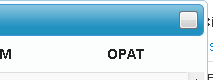
After browsing some resources, I found a simple solution. Use the following bit of code in your document.ready() and it fixes the issue:
$(document).ready(function(){
     var bootstrapButton = $.fn.button.noConflict() // return $.fn.button to previously assigned value
     $.fn.bootstrapBtn = bootstrapButton // give $().bootstrapBtn the Bootstrap functionality
});
I can’t claim credit for it. You can read more at the original stackoverflow question: http://stackoverflow.com/questions/17367736/jquery-ui-dialog-missing-close-icon
Leave a Reply